
DEXArea Change Tax Settings Guide: Token-2022 Transfer Fee
Introduction
The DEXArea Change Tax Settings tool lets you update the transfer fee (tax) rate for Token-2022 tokens that use the TransferFeeConfig extension.
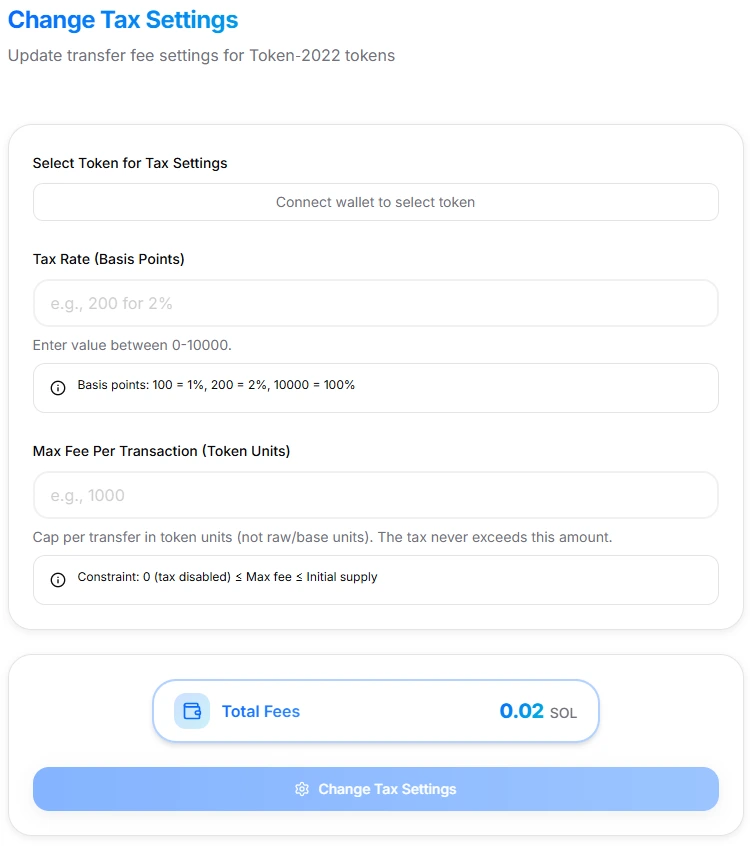
Change Tax Settings interface
You can:
- Adjust the tax rate in basis points (bps)
- Respect the maximum fee per transaction that was fixed at token creation
- Apply new settings to future transfers only (existing fees are not touched)
This guide explains how the tool works, what “basis points” mean, how max fee interacts with your tax rate, and the on-chain delay before new settings go live. It is technical documentation only and not financial or investment advice.
1. What the Change Tax Settings Tool Does
DEXArea’s Change Tax Settings tool:
- Works only with Token-2022 tokens that:
- Use the TransferFeeConfig extension
- Have an active transfer fee config (tax config) authority
- Lets the config authority set a new tax rate in basis points (0–10000 bps = 0–100%)
- Enforces constraints:
- Tax Rate (bps): 0–10000
- The effective fee can never exceed the max fee per transaction that was defined at token creation
- Does not change:
- The initial max fee per transaction cap (this cap is fixed at creation in DEXArea)
- Any existing withheld fees already accrued from past transfers
Under the hood, changing tax settings modifies the future transfer fee configuration for the mint. Token-2022 applies a built-in delay before new fees take effect (2 epochs) so users have time to react.
2. Key Concepts: Basis Points, Tax Rate & Max Fee
Basis Points (bps)
- 1% = 100 basis points
- Examples:
- 200 bps = 2%
- 500 bps = 5%
- 1000 bps = 10%
- 10000 bps = 100%
Using basis points avoids decimal rounding issues when encoding percentages on-chain.
Tax Rate
- Percentage of each transfer that is collected as a transfer fee.
- For a transfer of
amounttokens:- Raw fee is roughly
amount * (bps / 10,000) - Subject to the max fee cap enforced by Token-2022.
- Raw fee is roughly
Max Fee Per Transaction
- A cap on the fee amount for any single transfer.
- Example:
- With 10% tax and a max fee of 1000 tokens
- Transferring 50,000 tokens:
- Raw fee would be 5,000 tokens (10%)
- Actual fee is capped at 1000 tokens
In DEXArea’s model:
- The max fee cap itself is set at token creation and treated as immutable by this tool.
- When you change the tax rate later, the effective fee is still limited by that original cap.
3. Why Use Change Tax Settings?
Typical scenarios:
-
Fine-tuning tokenomics — Start with a higher fee and reduce it later once the token stabilizes, or start low and gradually increase within reasonable ranges.
-
Promotions & launches — Temporarily lower the tax rate during IDO/launch period, marketing campaigns, or partnerships, then restore your normal configuration afterwards.
-
Before locking configuration forever — If you plan to use Revoke Tax Config Authority, you should set the final tax rate you want, confirm it’s active on-chain, then revoke the config authority so the settings cannot change again.
-
Risk reduction & UX improvements — Reduce a tax rate that turned out to be too aggressive, or improve user experience by lowering fees on small transfers.
This tool doesn’t tell you what rate to choose. It just gives you a controlled way to update the configuration within Token-2022 limits.
4. What You Need Before Using This Tool
To successfully change tax settings, you must have:
-
Token-2022 Mint with Transfer Fees — Token must use the Token-2022 program and have the TransferFeeConfig extension enabled.
-
Transfer Fee Config Authority — Your connected wallet must be the transfer fee config authority for that mint. This can be a personal wallet, a multisig, or a DAO/governance executor wallet.
-
Valid Fee Range — Tax rate must be between 0 and 10000 basis points. The effective fee must not conflict with the max fee cap set at creation.
-
SOL for Network Fees — To pay transaction and priority fees for the update. The UI shows an estimated “Total Fees” (e.g. 0.02 SOL) for the operation.
5. Quick Start
-
Open the tool — Navigate to Change Tax Settings.
-
Connect your wallet — Use the wallet that holds the transfer fee config authority for your Token-2022 token (Phantom, Solflare, etc.).
-
Select your token
- Use the “Select Token for Tax Settings” section
- The current rate and max fee (cap) are shown in the form
-
Set a new tax rate (basis points)
- Input value between 0–10000
- Helper text: 100 bps = 1%, 200 bps = 2%, 10000 bps = 100%
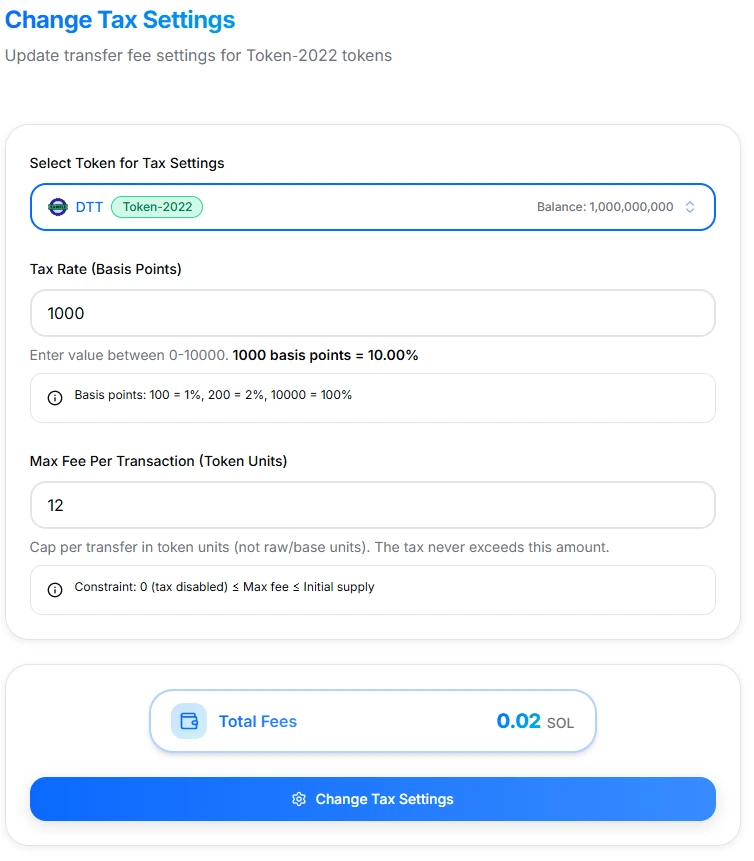
Change Tax Settings form with values filled
-
Review the max fee & constraints
- Confirm that your new tax rate makes sense relative to the max fee per transaction
- Your UI will remind you: “Tax rate cannot exceed the max fee limit set during creation”
-
Review total fees
- Check the “Total Fees” panel (platform + network cost estimate)
-
Confirm & sign
- Click Change Tax Settings
- Review transaction details in your wallet
- Sign the transaction
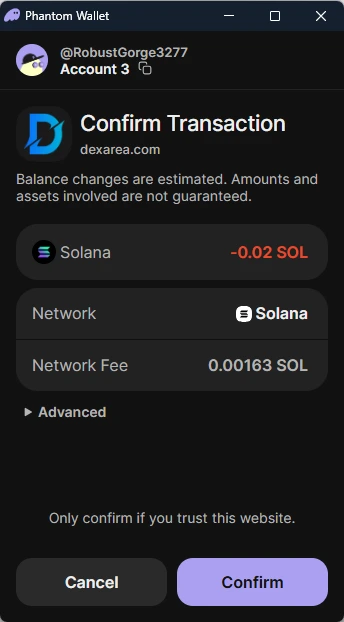
Phantom wallet confirmation popup
- Wait for the new settings to become active
- Token-2022 applies new transfer fee configs after a 2-epoch delay (roughly a few days) for safety.
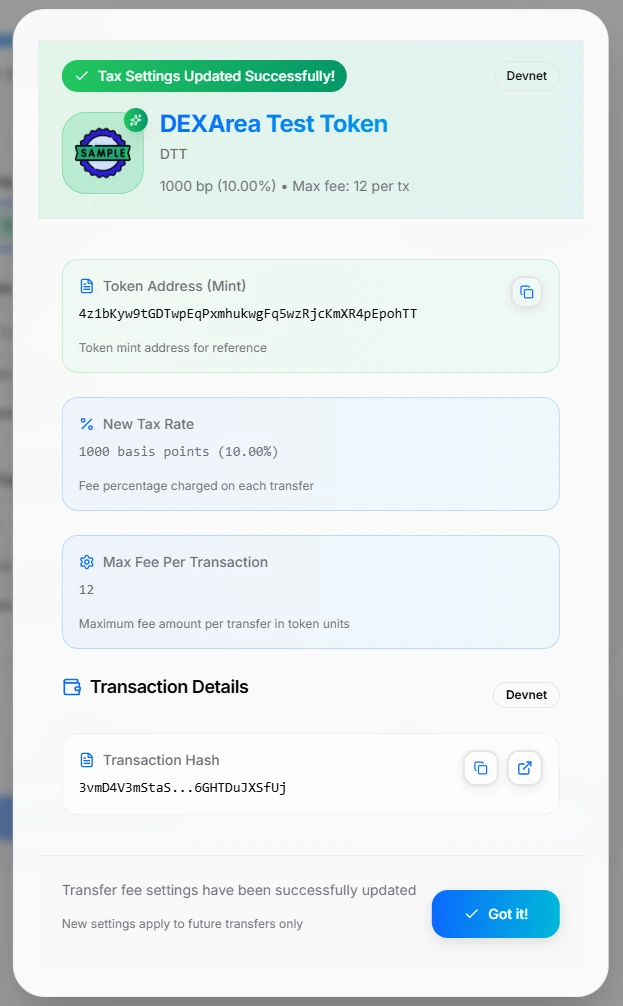
Change Tax Settings success modal
6. Interface Overview
The live tool UI is structured around a small form and caution text.
A. Token Selector
- “Select Token for Tax Settings”
- You must connect a wallet to select the token
- The tool validates: Token is Token-2022, TransferFeeConfig is enabled, your wallet is the config authority
If you’re not the authority, the tool displays an error and blocks the update.
B. Tax Rate (Basis Points)
- Field label: “Tax Rate (Basis Points)”
- Helper text: “Enter value between 0–10000.” “Basis points: 100 = 1%, 200 = 2%, 10000 = 100%”
This is the only parameter you’re expected to change repeatedly in normal use.
C. Max Fee Per Transaction (Token Units)
- Label: “Max Fee Per Transaction (Token Units)”
- Description: “Cap per transfer in token units (not raw/base units). The tax never exceeds this amount.”
- Constraint: 0 (tax disabled) ≤ Max fee ≤ Initial supply
In DEXArea’s current implementation:
- This cap is set at creation and treated as fixed by the tool: “The max fee per transaction caps the fee amount, protecting users from excessive fees on large transfers. This cap was set during token creation and cannot be changed.”
- In practice: you choose a sensible cap when creating the token; later tax rate changes must respect this cap.
D. Total Fees & Action Button
-
Total Fees — Shows estimated SOL cost (e.g. 0.02 SOL) for the tax update transaction.
-
Primary action — Button label: “Change Tax Settings”. Enabled only when a valid token is selected and inputs pass basic validation.
E. Informational Panels
Sections under the form:
-
About Transfer Fees — Explains tax rate & max fee in plain language.
-
Test on Devnet First — Recommends trying changes on Devnet before updating Mainnet.
-
Important Notes
- Only transfer fee config authority can change settings
- Max fee cap is fixed at creation
- Changes apply only to future transfers
- Operations are non-custodial (signed in your wallet)
-
Resources & Related Tools — Links to Token-2022 docs, authority explanations, and other DEXArea tools.
7. How Token-2022 Applies New Fee Settings
Token-2022 doesn’t flip your fee settings instantly.
2-Epoch Delay
When you change tax settings:
- A new configuration is stored as the “future” transfer fee config on the mint
- The current configuration stays active until the current epoch advances to the configured future epoch (about 2 epochs later)
- After the delay, the future config becomes the new current config and all subsequent transfers use the updated tax rate
Why this matters:
- Holders get time to see the change on-chain and decide if they continue using the token
- It reduces the risk of “instant rug” tax spikes
Practical Implication
- Don’t assume your new tax rate is active immediately after the transaction confirms.
- Do check the epoch / fee configuration using explorer tools if it’s critical, and communicate clearly with your community about when changes are scheduled and approximately when they’ll be active.
8. Risks & Best Practices
A. Setting Tax Too High
A high tax rate can:
- Discourage transfers
- Reduce liquidity & volume
- Break integrations that assume low/no transfer fees
- Damage your token’s reputation
Avoid “cute” values like 90–100% unless you are deliberately freezing transfer behavior and you fully understand the consequences.
B. DEX & Protocol Compatibility
Not all DeFi protocols are fully aware of Token-2022 transfer fees yet:
- Some might mis-account due to fees being taken from the recipient’s received amount, not the sender’s original amount.
- Higher fees can cause slippage issues and incorrect balances in treasury or escrow accounts.
Always test with the main DEXes where your token trades before deploying aggressive fee structures.
C. Authority Security
The config authority can change tax parameters and schedule updates that affect all future transfers. If that wallet is compromised, an attacker could set extreme fees; even with the 2-epoch delay, they can cause chaos and reputational damage.
Best practices:
- Use a multisig or governance program for config authority on serious projects
- Keep personal wallets with config authority extremely secure
- Consider Revoke Tax Config Authority once you’re confident in the final configuration
D. Devnet vs Mainnet Confusion
Common mistake: editing tax settings on Devnet while thinking it’s Mainnet (or vice versa).
- Always check the network toggle in DEXArea and the network indicator in your wallet.
- Devnet is for testing only; Mainnet changes are the ones that affect real users.
9. Troubleshooting
”I can’t select my token / tool says I’m not the authority”
Possible causes:
- Token is standard SPL, not Token-2022
- Token doesn’t have TransferFeeConfig enabled
- Your wallet is not the transfer fee config authority
- The authority has been transferred to another wallet or multisig, or revoked previously (using Revoke Tax Config Authority)
Solution: Confirm the current config authority in explorer, connect the correct authority wallet, or if it’s already revoked, you cannot change settings anymore.
”My transaction failed”
Common reasons:
- Not enough SOL for transaction & priority fees
- Network congestion; try again later or with a higher priority fee
- Mint state changed between selection and confirmation
You can inspect the failed transaction in a Solana explorer to see the exact program error.
”New tax rate doesn’t seem active yet”
- Remember the 2-epoch delay: new fee config becomes active only after a couple of epochs.
- Check current epoch via any RPC or explorer, and mint data to see which config (current vs future) is active.
10. FAQ
What are basis points again?
Basis points are a way to represent percentages exactly: 100 bps = 1%, 200 bps = 2%, 1000 bps = 10%, 10000 bps = 100%.
What is the maximum tax rate I can set?
Range: 0–10000 bps (0–100%). Your tax rate cannot produce fees above the max fee per transaction cap set at creation.
Can I change the max fee later?
In DEXArea’s tool the max fee cap is treated as fixed (set at token creation). Change Tax Settings is designed primarily to adjust the tax rate, not to retroactively alter the original cap.
Who can change tax settings?
Only the transfer fee config authority (sometimes called “tax config authority”) can change tax settings. If your wallet is not this authority, the tool will show an error and block updates.
Are changes reversible?
You can change tax settings again in the future as long as the transfer fee config authority has not been revoked and you still hold that authority. Once you use Revoke Tax Config Authority, fee settings become permanent.
What happens to existing fees when I change settings?
Existing withheld fees do not change. New settings apply only to future transfers after the configuration becomes active on-chain.
11. Related Tools & Wiki Articles
Related DEXArea Tools
-
Claim Tax Fees — Harvest and claim Token-2022 transfer fees to your wallet.
-
Revoke Tax Config Authority — Permanently lock tax settings so they cannot be changed.
-
Revoke Tax Withdraw Authority — Permanently disable the ability to withdraw withheld fees.
-
Token Creator (Token-2022) — Create new tax tokens with initial fee settings.
-
Portfolio — View Token-2022 status, authorities, and related actions from one dashboard.
DEXArea tools are non-custodial: everything is signed in your wallet and executed by the Token-2022 program.
Recommended Wiki Articles
-
Token 2022 — How Token Extensions work and why they exist.
-
Token Authorities Explained — Mint, freeze, update, tax config, withdraw, and how they interact.
Use Change Tax Settings as the configurable layer in your tax token design, and combine it with Claim Tax Fees and Revoke Tax Config Authority when you’re ready to lock in long-term behavior for your holders.