
Solana Portfolio Tool Guide: SPL, Token-2022 & Raydium LP
Introduction
The DEXArea Portfolio tool is your central dashboard for everything in your Solana wallet: SPL tokens, Token-2022 assets, and Raydium liquidity positions. It reads your wallet’s public key, queries the blockchain, and shows you balances, authorities, and available token operations in one place.
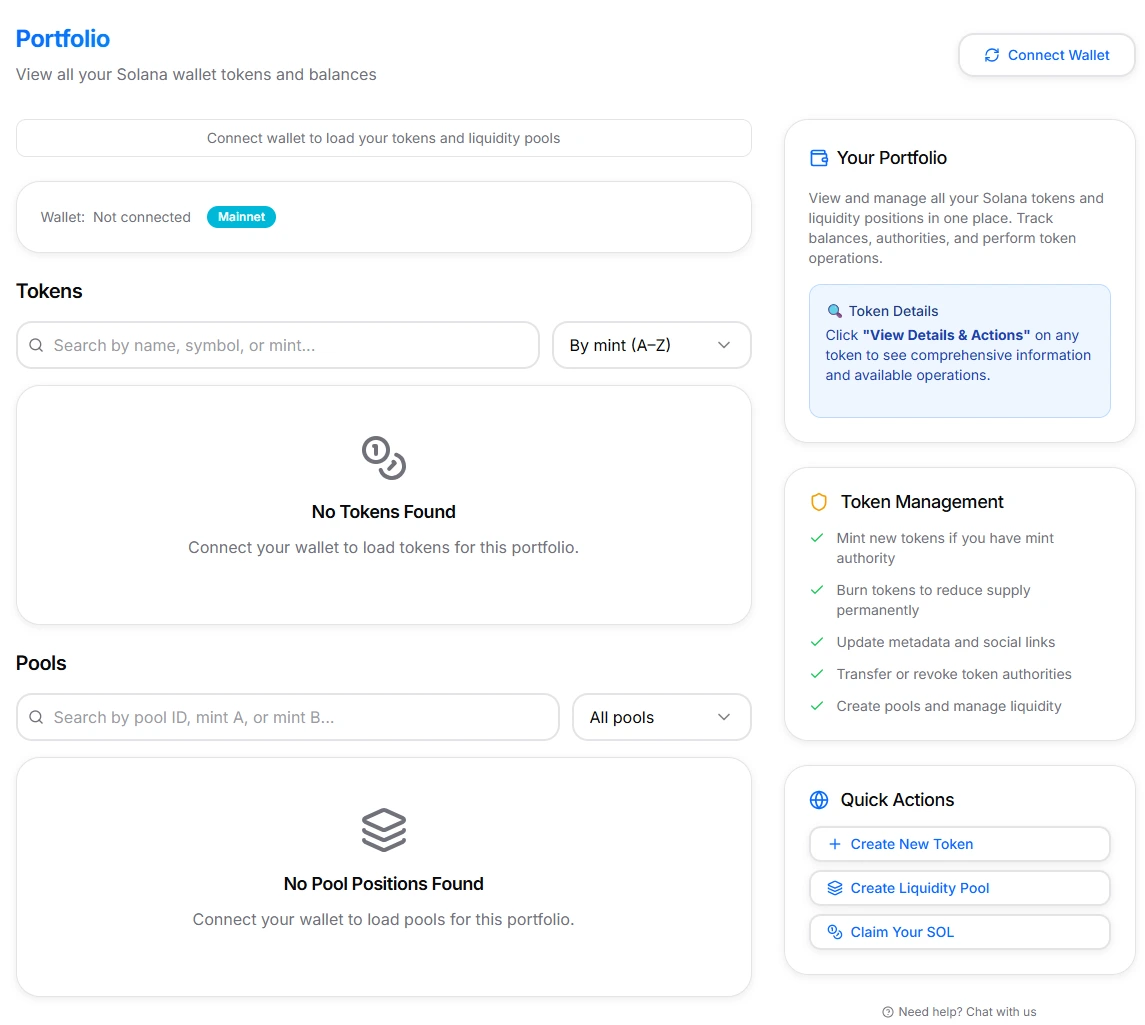
Solana Portfolio Page Interface
This guide explains what the Portfolio does, how it reads your data, how to use each section, and what actions are safe or risky. It is technical documentation only and not financial or investment advice.
1. What the Portfolio Does
DEXArea’s Portfolio tool:
- Lists all SPL and Token-2022 tokens held by your connected wallet
- Shows token balances, decimals, and token program (SPL vs Token-2022)
- Displays authority status:
- Mint authority
- Freeze authority
- Update authority (metadata)
- Shows liquidity pool positions:
- Raydium AMM / CLMM / CPMM pools
- Paired tokens for each position
- Provides contextual actions per token / pool based on your authorities, such as:
- Mint tokens (if you hold mint authority)
- Burn tokens
- Update metadata & social links
- Transfer or revoke authorities
- Create new pools, add/remove liquidity
- Snapshot holders, multisend tokens
The portfolio does not hold any funds or keys. It’s a viewer plus an action launcher that sends transactions to your wallet for signing.
2. Why Use the Portfolio Tool
Most Solana wallets show your token balances. The Portfolio goes further and is designed specifically for token creators, managers, and DeFi users:
-
Single source of truth for your token stack
All SPL and Token-2022 tokens, plus Raydium liquidity positions, in one interface. -
Authority awareness
Instantly see which tokens still have:- Mint authority enabled
- Freeze authority enabled
- Update authority enabled
This is essential for security and trust when you’re managing public tokens.
-
Action hub for other DEXArea tools
From a single token card you can:- Mint or burn tokens
- Update metadata
- Transfer/revoke authorities
- Create or manage liquidity pools
- Launch holder snapshots or multisender operations
-
Non-custodial & privacy-respecting
Data is fetched directly from the blockchain using your public key. Transactions are constructed client-side and signed in your wallet. No private keys, seed phrases, or token balances are stored on DEXArea servers.
Use this tool as your control panel whenever you need to understand or change something about a token you hold or manage.
3. Quick Start
-
Open the tool
Go to the Portfolio page. -
Connect your wallet
Use Phantom, Solflare, Backpack, or another supported Solana wallet. -
Wait for scan to complete
The Portfolio reads your public key and:- Loads SPL and Token-2022 tokens
- Loads Raydium pool positions (AMM / CLMM / CPMM where applicable)
-
Browse the Tokens section
- Review balances, program type badge (SPL vs Token-2022), and authority status
- Use search and sorting to locate specific tokens
-
Open token details
Click “View Details & Actions” on any token to see:- Mint address
- Authorities (mint / freeze / update)
- Supply details
- Metadata & social links
- Token-2022 extensions (for supported tokens)
- Quick action buttons
-
Check your Pools section
Review your Raydium positions and:- Add liquidity
- Remove liquidity
- Burn LP tokens where appropriate
-
Perform actions as needed
Each action opens a DEXArea tool flow and then a wallet transaction. Confirm details, then sign in your wallet.
4. What You Need
To use the Portfolio effectively:
-
Solana wallet
Phantom, Solflare, Backpack, or any wallet supported by the Solana wallet adapter. -
SOL for fees
You can view data for free, but any operations (mint, burn, update, liquidity changes) require a small amount of SOL for network fees. -
Basic understanding of Solana tokens
Helpful concepts:- SPL vs Token-2022
- Token accounts and rent
- Authorities (mint, freeze, update)
- Liquidity pools & LP tokens
If these concepts are new, start with the Solana Basics and Token Basics sections in the wiki before you begin managing live assets.
5. When to Use the Portfolio
Typical use cases:
-
Token creator / project owner
- Check that mint/freeze/update authorities are set as intended
- Confirm that authorities were revoked after launch
- Quickly jump to tools like Burn Tokens, Revoke Authorities, or Create Pool
-
Active DeFi user
- See which tokens and LP positions you hold
- Identify idle LP positions and remove or rebalance liquidity
- Track which pools are Raydium-based and what pool type they use
-
Security / hygiene checks
- Confirm you don’t still control authorities you promised to revoke
- Identify unknown tokens or spam and decide whether to burn / ignore
- Track Token-2022 extensions used by your tokens
Use it whenever you need a complete picture of your wallet’s tokens and liquidity, not just a balance list.
6. Interface Overview
The Portfolio interface is divided into three main areas:
- Header & network status
- Tokens section
- Pools section
A. Header & Network
-
Connect Wallet button
Shows your connection status and lets you connect or switch wallets. -
Network indicator
Shows whether you are on Mainnet or Devnet.
Always make sure the network matches what you intend to work on, especially when performing actions like minting or creating pools.
B. Tokens Section
The Tokens section lists your SPL and Token-2022 tokens. For each token, you generally see:
- Token name & symbol (if metadata is available)
- Program badge:
- SPL (standard Token Program)
- Token-2022 (extended Token-2022 program)
- Balance (adjusted for decimals)
- Mint address (shortened)
- Authority summary:
- Whether you hold mint, freeze, and/or update authority
Each token card also includes:
- “View Details & Actions” button
Opens a detailed modal with:- Full mint address and copy button
- All authorities with visual status (enabled/disabled)
- Supply / decimals
- Metadata description
- Social links (website, Twitter/X, Telegram, Discord)
- Any Token-2022 extensions detected (e.g., transfer fees, interest, non-transferable flags)
- Quick action buttons for available tools
C. Pools Section
The Pools section shows your liquidity positions, primarily on Raydium. For each pool:
- Pool name (token pair)
- DEX badge (e.g. “Raydium”)
- Pool type:
- AMM (standard automated market maker)
- CLMM (concentrated liquidity)
- CPMM / similar concentrated position models
- Your position size (LP tokens or underlying amounts, depending on implementation)
From here you can:
- Add liquidity (increase your position)
- Remove liquidity (withdraw tokens)
- Burn LP tokens where that makes sense (for some protection / cleanup workflows)
7. Search, Filters & Sorting
On wallets with many tokens, the Portfolio provides tools to find what you need quickly:
-
Search bar
- Search by token name
- Search by symbol
- Search by mint address (full or partial)
-
Sorting
- Sort by balance (high → low or low → high)
- Sort by mint address A–Z
Use these controls to quickly locate:
- Tokens you plan to manage
- Tokens you want to burn or freeze
- Specific mint addresses you are verifying
8. Authorities & Token Management
A key feature of the Portfolio is showing what you can actually do with each token. Actions are enabled or disabled based on your authorities and balances.
Authority Types
For each token, the tool checks and reveals:
-
Mint Authority
- If you hold it:
- You can mint more tokens
- You can transfer this authority to another address
- You can revoke it entirely (to lock supply)
- If you don’t hold it:
- Mint options are disabled
- If you hold it:
-
Freeze Authority
- If you hold it:
- You can freeze specific token accounts
- You can unfreeze them later
- You can transfer or revoke freeze authority
- If you don’t hold it:
- Freeze/unfreeze options are disabled
- If you hold it:
-
Update Authority (Metadata)
- If you hold it:
- You can edit metadata & social links via Update Metadata
- If you don’t:
- Metadata update tools are disabled
- If you hold it:
-
Balance-dependent actions
- Burn tokens is only available if:
- You hold a non-zero balance for that token
- Snapshot holders or Multisend may require the token to meet certain criteria (e.g., fungible, not an LP token).
- Burn tokens is only available if:
Actions Launched from Portfolio
From token details, you can jump into:
- Mint Tokens
- Burn Tokens
- Update Metadata
- Transfer Authority / Revoke Authorities
- Create Liquidity Pool
- Snapshot Holders
- Multisender
Each action opens the relevant DEXArea tool pre-filled with the token mint, reducing mistakes.
9. Liquidity Positions & Raydium Pools
The Portfolio doesn’t stop at tokens. It also tracks your Raydium liquidity where supported.
For each liquidity position, you can:
- Add Liquidity
- Increase your share of the pool
- Remove Liquidity
- Withdraw underlying tokens back to your wallet
- Burn LP Tokens
- In setups where burning LP tokens is part of a specific token’s safety model (e.g., renouncing control over LP)
Pool entries may show:
- DEX / protocol badge (e.g., Raydium)
- Pool type (AMM vs CLMM or other supported models)
- Paired tokens
- Your position size
For more details on pool models and costs, refer to the Raydium pool creation & liquidity management guides in this wiki.
10. Security & Privacy
The Portfolio is designed to respect both security and privacy:
-
Non-custodial
- DEXArea never holds your keys.
- All transactions are signed in your own wallet.
- There is no server-side custody of funds.
-
Read-only scanning
- Portfolio uses your public key to discover:
- Token accounts
- LP positions
- Data is fetched from the Solana blockchain and supporting infrastructure.
- Portfolio uses your public key to discover:
-
No long-term storage of wallet data
- Token lists and balances are computed in real time.
- DEXArea does not permanently store your balances or transaction history as part of the Portfolio tool.
-
Authority-aware UX
- Actions you’re not eligible for are disabled instead of failing later.
- If you revoked mint authority, minting options won’t be displayed as available.
You still need to follow standard wallet safety:
- Never share your seed phrase or private keys
- Check URLs carefully
- Verify transactions in your wallet before signing
11. Important Notices / Risks
A. Token Operations Are On-Chain & Irreversible
Any action you trigger from the Portfolio (mint, burn, authority changes, liquidity changes) sends a real Solana transaction:
- Burns are permanent
- Authority revocations cannot be undone
- Liquidity changes affect your real positions
Always confirm:
- You selected the correct token
- You understand what the action does
- You are on the correct network (Devnet vs Mainnet)
B. Token-2022 Features
Token-2022 adds features like:
- Transfer fees
- Interest-bearing tokens
- Confidential transfers
- Non-transferable tokens
- Permanent delegates
These can affect how your token behaves in wallets, DEXes, and other apps. Always test Token-2022 behavior on Devnet before deploying or managing important tokens on Mainnet.
C. Third-Party Protocol Risks
Liquidity positions are subject to:
- Raydium’s smart contract logic and risk profile
- Market volatility and impermanent loss
- External platform changes (fees, migrations, etc.)
The Portfolio only shows these positions and routes operations; it doesn’t eliminate underlying protocol risk.
D. No Financial Advice
This Portfolio documentation is not:
- Investment advice
- Trade recommendations
- Profit guarantees
It only explains how the tool works so you can execute your own decisions more safely and accurately.
12. Troubleshooting
”No Tokens Found”
Possible reasons:
- Your wallet really has no SPL or Token-2022 tokens
- Network mismatch (e.g., your wallet is on Devnet and you’re expecting Mainnet assets)
- Temporary RPC/indexer issues; try again after a short time
”No Pool Positions Found”
- You may not hold any supported LP positions
- You may be connected to the wrong network (Devnet vs Mainnet)
- The pool type might not be supported yet by the Portfolio viewer
”Some actions are disabled for my token”
- You probably don’t hold the required authority:
- No mint authority → mint disabled
- No update authority → metadata updates disabled
- No balance → burn disabled
- This is by design to prevent failed or misleading operations.
”My token shows only a mint address, no name or logo”
Common causes:
- Token was created without metadata
- Metadata URI is unreachable or invalid
- Indexers haven’t ingested the metadata yet
You can usually fix this by using the Update Metadata tool to add or correct on-chain metadata.
13. FAQ
Does the Portfolio hold my funds or keys?
No. The Portfolio does not hold any funds or keys. It’s a viewer plus an action launcher that sends transactions to your wallet for signing. All data is fetched from the blockchain using your public key.
Why are some actions disabled for my token?
Actions are enabled or disabled based on your authorities and balances. For example: no mint authority means mint is disabled; no update authority means metadata updates are disabled; no balance means burn is disabled. This is by design to prevent failed or misleading operations.
Does the Portfolio support Token-2022?
Yes. The Portfolio lists both SPL and Token-2022 tokens. For Token-2022, it shows extensions such as transfer fees, interest-bearing, non-transferable flags, and permanent delegates where supported.
What pool types does the Portfolio show?
The Portfolio shows Raydium liquidity positions: AMM (standard automated market maker), CLMM (concentrated liquidity), and CPMM or similar concentrated position models.
Is my wallet data stored by DEXArea?
No. Token lists and balances are computed in real time from the blockchain. DEXArea does not permanently store your balances or transaction history as part of the Portfolio tool.
14. Related Tools & Wiki Articles
Related DEXArea Tools
- Solana Token Creator – create SPL and Token-2022 tokens with no code
- Burn Tokens – permanently destroy tokens and reduce supply
- Revoke Authorities / Make Immutable – lock down mint/freeze/update authorities and metadata
- Create Pool / Add Liquidity / Remove Liquidity – manage Raydium-compatible pools
- Snapshot Holders – export holder lists
- Token Multisender – distribute tokens to multiple addresses
Recommended Reading
-
Solana Basics
- Wallet basics
- Transactions & fees
- Network infrastructure
-
Token Basics
- SPL vs Token-2022
- Token types on Solana
- Metadata & authorities
-
Liquidity & Raydium
- Pool types and cost models
- Risks of providing liquidity
- How AMM / CLMM pools operate
Use the Portfolio tool together with these guides for a complete, professional workflow around your Solana tokens and liquidity positions.