How to View Solana Token Metadata
View and verify Solana token metadata by mint address: name, symbol, logo, URI, authorities, immutability, caching, and the DEXArea View Metadata tool.
How to View Solana Token Metadata
TL;DR
- Mint address is the real token identity (Solana tokens); names and logos can be spoofed.
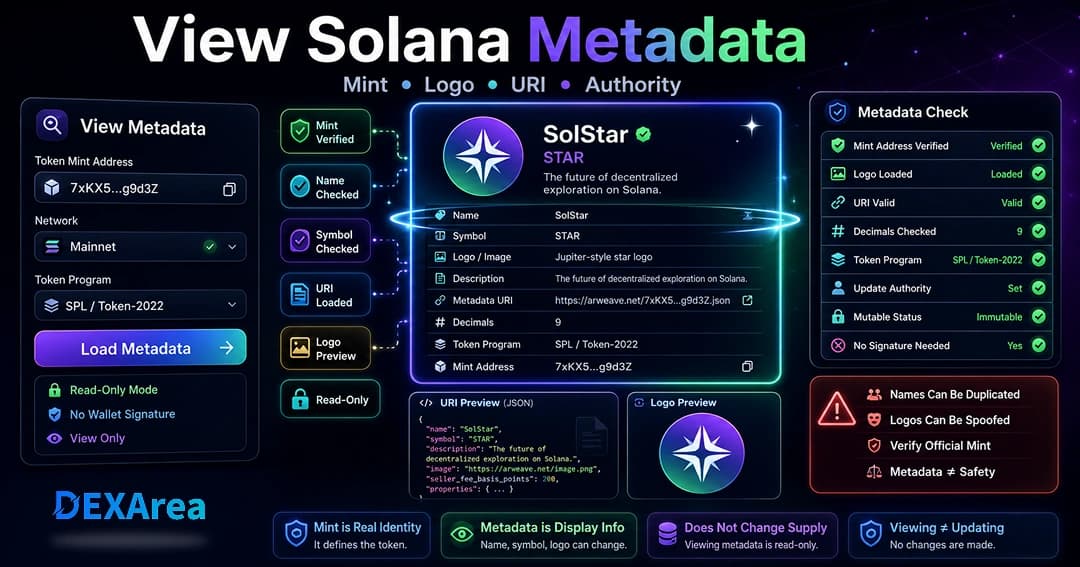
- Metadata may include name, symbol, image, description, URI, decimals, and authority fields (Token-2022 metadata).
- Viewing helps catch typos, broken images, or suspicious tokens before you act.
- Viewing is read-only; updating requires update authority.
- Use DEXArea’s View Metadata tool—no code required.
What is Solana token metadata?
uri.Metadata does not change supply, mint authority, or freeze authority—those live on the mint account separately.
Why metadata exists
Without metadata, users only see a long address. Names and images improve recognition, but anyone can assign misleading metadata. Treat metadata as informational, not proof of legitimacy.
Why view token metadata?
- Verify name, symbol, and logo match the real project
- Check image and URI load correctly
- Confirm the mint before updates, liquidity, or airdrops
- Review update authority and immutable status
- Spot duplicate or suspicious tokens
- Confirm changes after an update
Viewing does not require signing a transaction. Updates and authority changes do.
Metadata vs mint address
Tokens are uniquely identified by the mint account address. Names, symbols, and logos can be reused; only the mint cannot be faked for a given token identity.
Never rely on symbol or logo alone. Compare the mint to official project channels before you sign transactions or share links.
What metadata fields should you check?
- Mint address
- Name and symbol
- Logo/image URL
- Description and external links
- Metadata URI (off-chain JSON)
- Decimals and token program (SPL vs Token-2022)
- Update authority
- Immutable / mutable status
Fields vary by how the token was created (Metaplex vs Token-2022 on-mint metadata).
View vs update vs make immutable
| Action | Effect | Signs transaction? | DEXArea tool |
|---|---|---|---|
| View metadata | Read-only | No | View Metadata |
| Update metadata | Edits fields (with authority) | Yes | Update Metadata |
| Make immutable | Locks future edits | Yes | Make Immutable |
| Revoke mint | Stops new minting (not metadata) | Yes | Revoke Mint |
Review everything before making a token immutable—typos and broken images can become permanent.
When should you check metadata?
- After creating a token
- Before and after metadata updates
- Before making metadata immutable
- Before pools, airdrops, or multisender campaigns
- Before sharing token links publicly
- When you encounter an unfamiliar token
Step-by-step: view metadata with DEXArea
Step 1 — Open View Metadata
Step 2 — Enter the mint address
Paste the full mint from an official source. Do not search by symbol alone. Avoid confusing mint with a token account address.
Step 3 — Confirm network
Select mainnet or devnet. Test mints on devnet are not the same as mainnet tokens.
Step 4 — Review token details
Check name, symbol, mint, decimals, program, update authority, and immutability.
Step 5 — Check image and URI
Open the logo URL and metadata URI in a browser. Confirm JSON is valid for off-chain metadata.
Step 6 — Compare with official sources
Match mint and branding to the project website, docs, or announcements.
Step 7 — Decide next steps
- Fix issues via Update Metadata if you hold authority
- Lock with Make Immutable when final
- Avoid the token if verification fails
- Save mint and decimals for later tooling
Why metadata may look wrong or outdated
- Wrong mint or network
- Broken or moved metadata URI
- Missing or blocked image files
- Wallet/explorer cache after updates
- Token-2022 vs legacy display support
- Temporary RPC issues
Re-check on DEXArea after network stability. Viewing is read-only and safe to retry.
Troubleshooting
| Problem | Possible cause | What to check |
|---|---|---|
| Token not found | Wrong mint/network | Mint address and cluster |
| Logo missing | Bad URI or cache | Open URI; validate image URL |
| Stale display | Cache | Refresh; compare with DEXArea |
| Looks like a fake | Duplicate branding | Official mint only |
| Cannot update | No authority or immutable | Update authority field |
Common verification mistakes
- Trusting logo or symbol alone
- Pasting the wrong mint
- Checking devnet instead of mainnet
- Ignoring a broken URI
- Locking immutable before final review
- Sharing links without mint verification
- Assuming metadata proves safety
Metadata verification checklist
- Mint verified against official source
- Correct network
- Name and symbol reviewed
- Logo loads
- Metadata URI valid
- Description and links reviewed
- Decimals and program noted
- Update authority and immutability checked
- Next action decided
What to do after viewing
- Save the verified mint address
- Update metadata if needed (update guide)
- Consider immutable when launch-ready
- Review mint and freeze authority before public launch
- Proceed to liquidity or distribution tools when confident
- Re-check after updates (cache delay)
FAQ
Open DEXArea View Metadata, enter the mint, select network, review fields.
What is included in metadata?
Often name, symbol, URI, image, description, decimals, links, and authority info—varies by standard.
Is metadata the same as the mint?
No. Mint is the unique ID; metadata is display data.
Can two tokens share a name or symbol?
Yes. Verify the mint.
Can I check the logo from metadata?
Yes via image URL in metadata or the viewer.
Why does my wallet show old metadata?
Caching or broken URI; verify on-chain with View Metadata.
View without coding?
Yes via DEXArea.
Update after viewing?
Only if you hold update authority and metadata is mutable.
What is update authority?
The key allowed to edit metadata.
Change metadata after immutable?
No.
Does viewing require signing?
No.
Financial advice?
No.
Disclaimer
This guide is for educational purposes only and is not financial advice. Metadata verification helps you inspect details; it does not prove a project is safe or legitimate. Verify mint addresses and review transactions before signing.
DEXArea is non-custodial. Viewing metadata is typically read-only; on-chain updates require your wallet signature.